Video Tutorials in Urdu and Hindi

Video Tutorials in Urdu and Hindi

Video tutorials of computer programs, a complete demonstration and training in urdu and hindi language. Watch online and download complete video training. Read More

All Keyboard Shortcut Keys for PC

All Keyboard Shortcut Keys for PC

Shortcut keys provide help an quicker and convenient way of navigating and using computer applications. Shortcut key is a key or combination of different keys on computer keyboard that run a specific command or function within a software program or operating system. Read More

Speed up your slow computer

Speed up your slow computer

Speed up your slow computer using simple tricks expalined here. Read More

Slide # 4

Slide # 4

Far far away, behind the word mountains, far from the countries Vokalia and Consonantia, there live the blind texts Read More

Slide # 5

Slide # 5

Far far away, behind the word mountains, far from the countries Vokalia and Consonantia, there live the blind texts Read More

Showing posts with label How-to Guide. Show all posts

Monday, September 15, 2014

speed up your computer by increasing the RAM using USB

Most of us know that the speed of computer is depends upon storage capacity of RAM so the more storage means the more speed. Because all the programs currently running are loaded in RAM. If we open more programs or heavy program, it will slow down the computer speed. So, if we increase the RAM more data can be loaded into the RAM and hence more computations can be done at a time.

Buying the more RAM for increasing storage capacity is expensive a little bit. In this tutorial I will show you how to increase the RAM storage capacity by using USB for speed up your computer.


آپ اپنے کمپیوٹر کی ریم زیادہ کر کے اس کی سپیڈ بڑھا سکتے ہیں۔ریم ایک ایسا سٹوریج میڈیا ہے جو کہ ڈائریکٹلی کمپیوٹر کی ورکنگ میں استعمال ہوتی ہے۔ سسٹم یا یوزر جب بھی کوئی اپلیکیشن رن کرتے ہیں یا کوئی پروگرام اوپن کرتے ہیں تو وہ سب سے پہلے ریم میں لوڈ ہوتے ہیں۔ اگر یوزر زیادہ پروگرام اوپن کرلے یا کوئی ہیوی پروگرام چلا لے تو اس سے کمپیوٹر بہت سلو ہوجاتا ہے کیونکہ کم سٹوریج کیپیسی ٹی کی وجہ سے ریم میں سپیس نہیں بچتی۔ اگر آپ اپنی ریم کا سائز بڑھا لیں تو اس سے سپیس بڑھ جائے گی اور کمپیوٹر کی سپیڈ بھی بڑھ جائے گی۔ ریم کا سائز بڑھانے کا ایک آسان اور سستا طریقہ یہ بھی ہے کہ آپ یو ایس بی کو ریم کے طور پر استعمال کریں۔
اس ٹیٹوریل میں آپ کو سکھائیں گے کہ ایک یو ایس بی کو ریم کیسے بناتے ہیں۔


Step 1: Insert USB to USB port of computer
Step 2: Go to MY Computer, Right Click on USB drive and Select “Properties”
speed up your computer by increasing the RAM using USB

Step 3: A windows will be Pop-up like this, select “ReadyBoost” tab and select “Use this device” option. Then allocate space for making RAM.
speed up your computer by increasing the RAM using USB

Sunday, September 14, 2014

Everyone wants to check the computer information and specifications while purchasing new computer system or hardware and software for his system. In this guide you will learn how to check the computer information and specifications for Windows XP, Vista and Seven.

1. Check Computer Specifications and information in Windows XP using msinfo32

Step:1 Go to Run option
How to Check Computer Specifications and Information in XP, Vista and Seven

Step:2  input msinfo32 and hit OK
Check Computer Specifications and information in Windows XP using msinfo32

Step:3  You can check here all specifications of system.


2. Check Computer Specifications and information in Windows XP using DxDiag

Step:1 Go to Run option

How to Check Computer Specifications and Information in XP, Vista and Seven

Step:2  input DxDiag and hit OK
How to Check Computer Specifications and Information in XP, Vista and Seven

Step:3  You can check here all specifications of system.
How to Check Computer Specifications and Information in XP, Vista and Seven


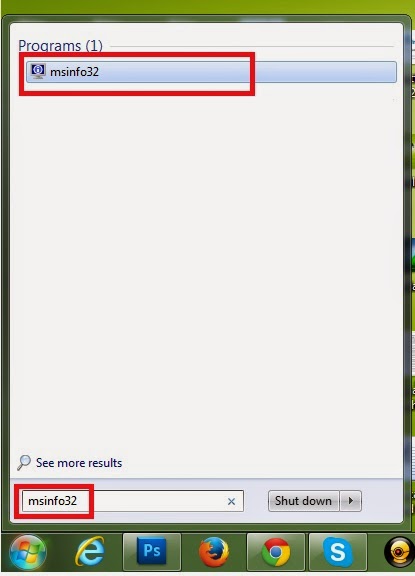
3. Check Computer Specifications and information in Windows Seven/Vista using msinfo32

Step:1 Go to Start and input msinfo32 in search option and click on file.

How to Check Computer Specifications and Information in XP, Vista and Seven

Step:2  You can check here all specifications of system.

How to Check Computer Specifications and Information in XP, Vista and Seven


4. Check Computer Specifications and information in Windows Seven/Vista using DxDiag

Step:1 Go to Start and input DxDiag in search option and click on file.

How to Check Computer Specifications and Information in XP, Vista and Seven


Step:2  You can check here all specifications of system.

How to Check Computer Specifications and Information in XP, Vista and Seven

5. Check Computer Specifications and information in Windows Seven/Vista

Step:1 Go to Start > All Programs > Accessories > System Tools > System Information

How to Check Computer Specifications and Information in XP, Vista and Seven

How to Check Computer Specifications and Information in XP, Vista and Seven